Blog Planning
How to use a digital planner on your iPad or Android tablet (step by step)
What a digital planner is, which app and stylus you need, how to import it on iPad and Android, five tips for the whole year and how to choose one.
"Digital planner" sounds like a complicated app with a subscription and endless notifications. It's none of those things. If you have a tablet and like writing by hand, you can have one up and running in ten minutes. Here's how, step by step.
What it actually is
A digital planner is a PDF with links. You open it in a note-taking app, write on it with a stylus (or type), and instead of flicking through pages, you tap: the month, the week, the day. The tabs down the side work just like the dividers in a paper diary.
It doesn't replace the calendar on your phone, which reminds you about appointments. It's something else: a place to think, plan and write, like paper, but on the tablet you already carry around.
What you need
- A tablet: an iPad or an Android tablet.
- A note-taking app that opens PDFs with links: on iPad, Goodnotes, Notability or Noteshelf; on Android, Samsung Notes, Noteshelf or Xodo. Some are free, others are paid or subscription-based.
- A stylus that works with your tablet, if you want to write by hand. If you'd rather type, Adobe Acrobat Reader (free) lets you type on the lines.
- The planner file, saved on your tablet or in your cloud storage.
Step by step on iPad
- Save the PDF to Files. Open it from the download link, tap the share button and choose "Save to Files".
- Import it into your app. In Goodnotes, tap "+ New", choose "Import" and find the file. In Notability and Noteshelf it imports like any other PDF.
- Give it a clear name, such as "Planner 2027", and keep it as its own document rather than inside another notebook.
- Test a link. Tap a month on the tabs. In Goodnotes on iPad a single tap is enough; if you're using the pen tool and it doesn't jump, long-press the link and choose "Open Link", or switch to read-only mode.
- Write your first page. Start with something meaningful: your goals for the year or the week you're in.
Step by step on Android
- Download the PDF and find it in your Downloads folder (in "My Files" on Samsung tablets).
- Open it in your app. In Samsung Notes, use the import PDF option; in Xodo, the file shows up in the list of documents on your tablet. You can also tap it in the folder and choose "Open with".
- Test a link. If tapping a tab draws a dot instead of jumping, leave writing mode: in Samsung Notes, tap the book icon to switch to reading mode; in Xodo, make sure no drawing or annotation tool is selected. Then the links respond.
- Try it for a week before you fill in the whole year. A complete planner has hundreds of pages, so this way you can check that your tablet and app handle it smoothly.
Menus change with every app update. If something isn't where I say, search for "import PDF" or "links" in your app's help pages.
Five tips for the whole year
- Keep a clean copy. Before you write anything, leave the original PDF in Files or in the cloud. If anything goes wrong, you simply import it again.
- Turn on your app's automatic backup, if it has one, and check once a month that it's working. A whole year of notes deserves that minute.
- Always come in through the same door. If your app lets you bookmark pages, bookmark the current week; if you use Adobe Acrobat Reader, some planners have a "Today" button that opens the day for you.
- Few colours, always the same ones: one for work, one for home and one for you. It works just like time blocking on paper: after three months, one glance at the week tells you where your time goes.
- A ten-minute weekly review. On Sunday evening or first thing on Monday: look at the week ahead, choose three priorities and tick off your habits. To stop that tracker becoming another chore, see how to use a habit tracker without obsessing.
And one small rule: digital stickers are for what you want to see at a glance (a birthday, a GP appointment), not for decorating every page.
How to choose one: a quick checklist
- Dated or undated? Dated means you open it and write; undated is flexible, but you'll have to fill in the days yourself.
- Linked throughout? Year to month, month to week, week to day, and back to the index from any page.
- Does it work in your app? The seller should say so. If they don't, ask before you buy.
- Landscape or portrait? In landscape you see two pages at once, like an open book.
- Weekly and daily? If you want to plan and also write, you need both.
- In your language? Months, days and holidays.
- What does the licence allow? Usually personal use, on your own devices.
- Can you see real pages? Screenshots from a tablet, not just pretty mock-ups.
If you're still torn between a weekly and a daily layout, I go through it in how to choose a planner for 2027.
Paper, tablet or both?
Writing with a stylus on a tablet is still handwriting: your hand forms every letter. Even so, a few small studies suggest paper may help a little more with memory; I summarised them, with their limits, in the planner guide.
The tablet wins on weight, on never being left at home and on letting you rub things out without a trace. Paper wins on having no notifications and no battery, and on simply sitting there, open, on the table. Plenty of people use both: paper at home for the daily page, the tablet at work or when travelling. That's why there's a tablet version: the same journal as the printed book, with links.
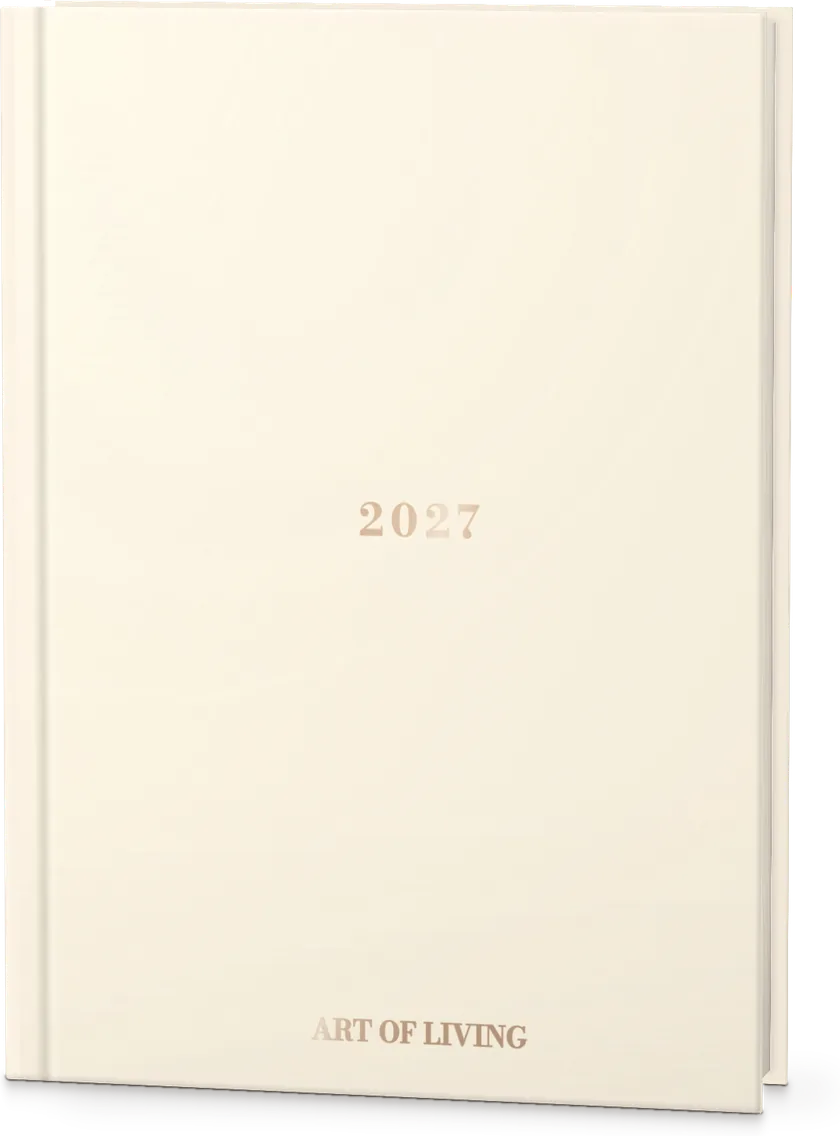
I made my digital planner in landscape, with tabs for all twelve months always within reach and a "How to use" page that tells you which app works best for what.
Keep reading

Winter blues: how to look after your mood in the dark months (what the science says)
Why winter weighs on your mood, when the winter blues mean it's time to see your GP, ten simple habits that help and how to observe yourself for two weeks.
Read
Secret Santa gift ideas: 15 small, thoughtful gifts (that won't end up in a drawer)
Secret Santa ideas under £10, £20 and £30, gifts that arrive in time even if the swap is tomorrow, and simple wrapping: 15 small gifts people actually use.
Read